


Swift Pie Menu v2.0.3 for Blender
Swift Pie Menu v2.0.3 for Blender
A Framework for Creating Custom Menus and UI Panels
Swift Pie Menu is not a pre-made set of tools, but a robust framework for building your own. The addon provides a comprehensive toolkit for constructing highly efficient, personalized menus and panels directly within Blender, minimizing reliance on default layouts and optimizing muscle memory for complex workflows.
The core philosophy is simple: reduce clicks, eliminate menu diving, and centralize access to any function, property, or custom script. This is achieved through a multi-layered system of customizable pie menus, popup UI panels, and traditional vertical menus, all managed from a single interface.
Key Features
1. Advanced Pie Menu Architecture
The foundation is a block-based grid system designed for maximum density and logical grouping of elements.
High-Density Layout
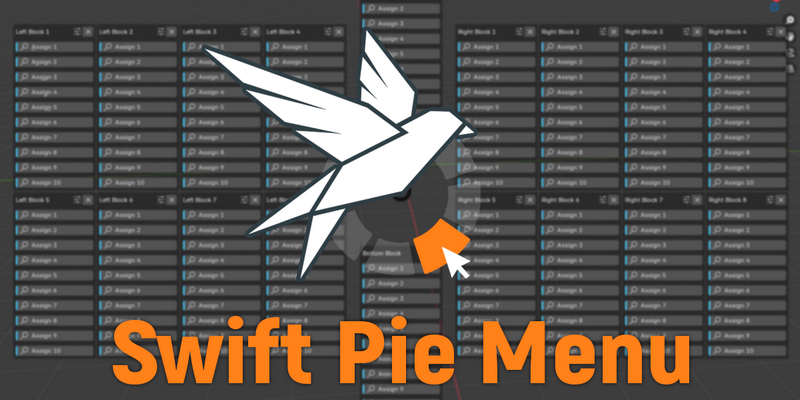
Configure up to 18 individual blocks (8 left, 8 right, top, bottom), each capable of holding 1 to 10 action buttons.
Granular Block Control
Each block is an independent module. Customize its visibility, number of buttons, label, icon, and color-coding for quick visual identification. An “Icons Only” mode is available for creating compact, minimalist layouts.
2. Action System: Unified Access to Blender’s Core
A button in Swift Pie Menu is a universal entry point. It can be assigned to execute a wide range of commands, going far beyond simple operators.
Operators
Execute any bpy.ops operator. The system intelligently captures operator properties from the UI context upon assignment, preserving tool settings (e.g., the segment count of a newly created sphere).
Properties
Directly control any animatable property via its data path. This allows for toggling boolean values (checkboxes), changing numerical parameters, and selecting items from enumerations (enums).
UI Panels
Display any standard Blender UI panel (e.g., the Modifiers or Constraints panel) in a separate popup window, providing focused access to complex property groups.
Pie Sub-Menu Chaining
Decompose complex workflows into logical hierarchies. An action button can call another, fully independent pie menu, which in turn can call the next.
Custom Regular Menus
For tasks not suited to a radial interface, a visual editor allows you to construct traditional vertical menus, including separators, labels, and nested sub-menus.
External Script Execution
Integrate custom automation by linking buttons to external .py files. This provides a direct pathway for technical directors and advanced users to run proprietary tools from a centralized UI.
Context Override (Mode-Specific Buttons)
Any button in any menu type can be restricted to specific Blender editing modes. Enable a button only for Object Mode, Edit Mode, Sculpt Mode, Vertex Paint, and 60+ other contexts. Buttons outside their active context are automatically grayed out, keeping the interface clean and uncluttered regardless of the current workflow stage.
3. Visual UI Snippet Builder
The framework’s most powerful feature: a full-fledged visual editor for creating custom user interfaces without writing code. These “UI Snippets” can serve as complex tool palettes or focused property editors.
Codeless UI Creation
A specialized builder allows you to design interfaces by adding and organizing UI elements: operators, properties, labels, separators, spacers, collapsible blocks, and tabbed sections.
Layout Engine
Elements can be grouped into rows with precise control over horizontal alignment (Expand, Left, Center, Right) and proportional width factors.
Two Deployment Modes
Popup Window: Deploy the snippet as a modal window, callable from any action button. The window width is customizable.
Docked Panel (Sidebar Panel): Integrate the snippet natively into Blender’s interface by docking it as a persistent panel in the 3D Viewport’s sidebar (N-panel).
Live Preview
An integrated preview panel in the addon preferences provides real-time feedback as you construct your interface.
4. Nested Pie Sub-Menu Editor
A system of nested pie menus is provided for organizing a large number of tools.
Visual Slot Editor
Each sub-menu is configured in an intuitive editor that simulates the 8-slot structure of a pie menu.
Flexible Content
Assign any available action to any sub-menu slot—an operator, a property, a panel, or even a call to another UI Snippet.
Hierarchical Chaining
Although sub-menus are created as separate entities, they can be assigned to the slots of other sub-menus, creating deep and logical tool hierarchies.
5. Regular (Vertical) Menu Builder
Not all tasks are suited for a radial interface. For long lists of commands, use the classic vertical menu builder.
Analogous to UI Snippets
The builder uses the same simple logic as the UI Snippet editor: add operators, properties, separators, and text labels.
Create Nested Sections
Within a vertical menu, you can create collapsible sub-menus, allowing you to efficiently group dozens of commands without cluttering the interface.
Tab Sections
In addition to collapsible blocks, the builder supports a full tab system. Add named tab headers to divide the menu content into switchable sections, enabling a compact multi-page layout within a single menu.
Assign to Any Button
A finished vertical menu can be assigned to any button in the main pie menu or any slot in a sub-menu.
6. Custom Script Asset Library
External Python scripts are treated as first-class assets, not merely a button option. They have their own dedicated library within the addon and the same capabilities as any other asset type.
Dedicated Script Manager
Register, label, and manage all your external .py scripts in a central library. Scripts can be assigned to any button type across all menus, sub-menus, and UI snippets.
Robust Execution Engine
Scripts are executed with full access to the Blender Python API (bpy and context globals). The engine uses a multi-encoding fallback chain (UTF-8, cp1251, Latin-1, ASCII) to ensure compatibility with scripts created in any locale. Errors are reported both in the console and in the Blender UI.
Workflow and Usability Features
Setup efficiency is as important as usage efficiency. The framework includes several tools to speed up the configuration process.
Direct Assignment (via RMB)
The primary method for populating menus. Right-click on any UI element (button, property) in Blender and select “SwiftPie: Assign to…” to bind it directly to a specific slot. This action also adds the element to the Asset Library simultaneously.
Centralized Asset Library
All assigned operators, properties, and panels are stored in a central library. This allows you to define an asset once and reuse it across multiple menus, sub-menus, and UI snippets. When an asset is renamed in the library, all linked buttons automatically update their labels.
System-Wide Search and Discovery
If an operator or panel ID is unknown, the built-in scanner can analyze your Blender installation to generate a complete, searchable list of all operators, menus, and panels, ready to be added to your Asset Library with a single click.
Built-in Icon Browser
A searchable, categorized browser of all Blender’s built-in icons to ensure a clear visual language in your custom interfaces.
Built-in Documentation
A dedicated tab in the addon preferences contains detailed guides on all key features, from quick starts to advanced capabilities like UI Snippets and scripting.
System Management
Configuration Management
The entire addon setup, including all menus, asset libraries, and UI snippets, can be exported to and imported from a single .json file. This facilitates backups, versioning, and sharing configurations within a team.
Context-Aware Hotkey Manager
Assign unique hotkeys not only to the main pie menu but also to every UI Snippet, nested Sub-Menu, or regular menu you create. The key feature is that each hotkey is bound to a specific context (e.g., ‘3D View’, ‘Node Editor’, ‘Image Editor’). This allows you to use the same key combination to summon different toolsets in different editor windows, creating a highly responsive and intuitive workflow.
Smart Hotkey Conflict Resolution
The addon automatically detects if an assigned hotkey conflicts with a default Blender keymap. It non-destructively disables the conflicting default binding, ensuring your hotkey always takes priority. The original keymaps are restored when the addon is deactivated.
Safe Reset
A reset function is provided that clears the pie menu layout and button assignments to their default state without deleting your carefully curated Asset Library.
Target Audience
Professional Artists and Studios: Aiming to create a standardized, highly efficient workflow and minimize time spent on UI navigation.
Technical Directors and Pipeline TDs: In need of a robust framework to integrate custom scripts and tools into an artist-friendly UI without developing full-fledged addons.
Advanced Blender Users: Who have a clear vision of their ideal workflow and need a powerful toolset to realize it.