


Depth Based Pixelator – Pixelize Your 3D Scenes – Unity
Depth Based Pixelator – Pixelize Your 3D Scenes – Unity
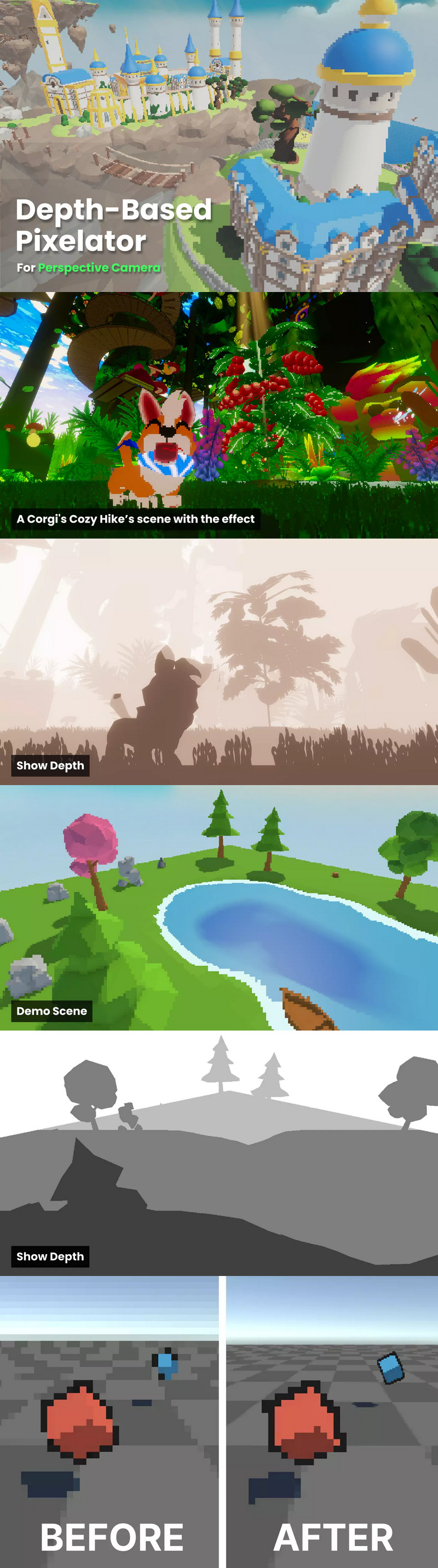
Pixelize 3D scene based on depth in URP. Adjust custom pixel sizes for each depth range using flexible, per-level resolution control.
Depth-Based Pixelation is a customizable fullscreen effect for Unity URP, implemented as a Renderer Feature. It dynamically pixelates the scene based on depth.
Built specifically for perspective cameras, and supports multiple resolution levels based on distance and custom depth thresholds.
Key Features:
– Depth-Based Pixelation
This effect applies pixelation that changes based on the depth of each pixel. Allowing you to have full control over in which depth range the resolution should be.
– Perspective Camera Support
Unlike many pixelation shaders/cameras that work best with orthographic projection, this system is designed specifically for perspective cameras. It pixelates the screen based on depth, making it suitable for immersive 3D games.
– Customizable Depth Mapping
You have full control over how the scene is divided into resolution levels. Adjust depth thresholds to define where the pixelation changes, and specify how many levels you want. This makes the system flexible and easy to adapt to any kind of scene or scale.
– Per-Level Resolution Control
Each depth level can have its own assigned pixel size. You can fine-tune how coarse or fine the pixelation is at each range.
– Native Resolution
This asset supports a full-resolution depth layer, allowing you to render the final depth layer at your scene’s native resolution.
– Resolution Multiply Factor
This variable serves as a global multiplier, allowing you to control the overall scale more conveniently and achieve quick adjustments across all levels.
– Shader Free
Requires no special shaders so you can keep your existing materials.
Supported Versions:
– Unity 6 and above.
– 2022+ (legacy, doesn’t support camera stacking)
Performance
The performance impact of this effect can vary, depending largely on the total number of layers. For example, if you use 7 layers with one set to full resolution, you can expect the framerate to drop to around 3/4 of the original.
Max Resolution
To help maintain good performance, the maximum internal rendering resolution is capped at one-third of the screen resolution by default. For example, on a 1920 × 1080 display, the highest internal resolution used by the effect is 640 × 360. Once this limit is reached, increasing the threshold resolution further will not reduce the pixelation effect.
This limitation helps keep the effect performant, especially when using multiple depth layers.
If you need a higher maximum internal resolution, the limit can be customized. See the Max Resolution section of the documentation for instructions.
MSAA
This effect is not compatible with MSAA in Unity 6+ and should be disabled when using that version. Note that MSAA offers no visual benefit when used with a pixelizer and will cause the edges to blend with the background color.
Thin Objects
Very thin geometry — such as wires, grass, or fence poles — may not pixelate cleanly and loss detail.
Transparent Materials
Avoid using transparent materials, as they don’t write to the depth buffer. As a result, the pixelation resolution will be determined by the depth of whatever is behind the transparent object. This isn’t usually an issue if the background has a similar pixelation level (e.g. shallow water), but it can produce unexpected results in scenes with large depth differences.
Subpixel Limitation (Perspective Cameras)
Subpixel stability — where pixelation “locks” perfectly to world space — is generally not possible with perspective cameras. This is because, in a perspective projection, objects at different depths move at different speeds relative to the camera (parallax). As a result, a single world-space-aligned pixel grid can’t be consistently applied across the entire scene.
While orthographic projections can maintain subpixel-perfect alignment (since all objects move uniformly), perspective projection inherently breaks that possibility.
However, you can reduce the visual impact of this effect by:
– Using a higher resolution (smaller pixels), which makes snapping less noticeable
– Applying less gliding camera movement, which hides jitter more effectively than slow, precise movement.