

Camera Plane v3.0.1 for Blender
Camera Plane v3.0.1 for Blender
Import images and parent them to the camera. You can then set the distance and width from the image object’s or the camera’s properties. The plane will adjust to the camera’s FOV or focal length.
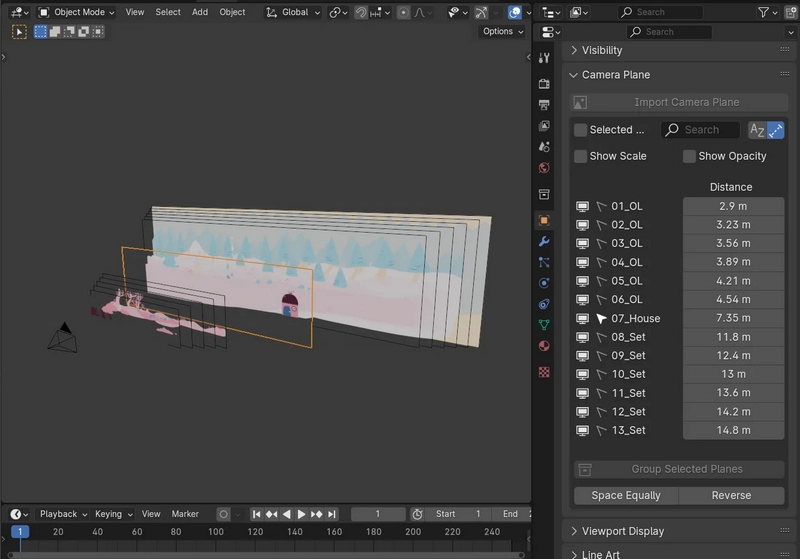
You can easily import several images at once, which will be equally spaced in depth. This is useful when creating painted stage-like sets which need to stick to a camera.
Importing
Select the camera
Click Import Camera Planes from the object properties
Select images to import
The panel now extends to show a list of images.
Those images can be filtered, and they can be displayed either in alphabetical order, or by increasing distance from the camera.
Image settings
From the Camera Plane panel, you can reorder the planes by setting their distance from the camera. Like other properties in Blender, you can click on a distance, drag up or down to include the distance from other planes, and then drag left or right to change the distance, and thus move several planes at once.
The scale and opacity of each image can likewise be tweaked by clicking Show Scale and Show Opacity, respectively.
Icons to the left of each layer can be used to change their visibility (both viewport and render at the same time), selectability, and to lock and unlock their transforms.
Operators
Some operators are available in the arrow menu to the top right to manipulate the planes.
Group Selected
This allows creating a sort of “precomposition” from the selected planes. It is useful when your sets have a lot of layers, not all of which should be placed individually.
Space Evenly
This will change the selected planes’s distances so that they all have the same distance between them.
Apply Selected
This will ungroup selected planes if necessary, and apply their drivers so they no longer need the Camera Plane add-on to be placed.
Setup Layers
This will create view layers for each of the planes, and assign them to collections. That way, they can be rendered to their own render pass and composited individually.
Convert to Camera Mapping
This operator, available in the viewport’s context menu (right-click / W), will set up the selected objects so they can be edited for camera mapping, with a UV project modifier and a Geometry Nodes setup that fixes UVs so that they are perspective correct. If no camera is selected, a new one will be created, so make sure to select the camera you want to use as projection.