


Gp Select v1.1.0 for Blender
Gp Select v1.1.0 for Blender
This is a Cut Out , puppet animation focused Grease Pencil tool to speed up your rigging work flow. Even if you aren’t a cutout animator, or rig Grease pencil , you’ll still benefit.
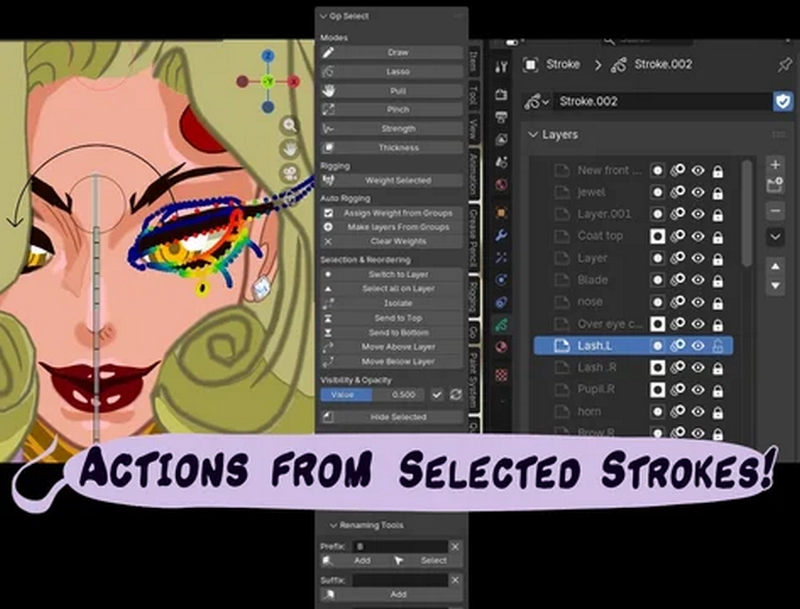
The idea behind this add on: is that you just select the stroke you want, and perform the action you need. Use Edit mode (or sculpt mode with selection masks turned on) to select strokes. Then while a stroke is selected you can Change layers , Isolate strokes for weight painting, reorder layers by selection, Mask by selected, Hide layers by selected, Rename by selected, Opacity by selected, Multiple layer Duplication, Delete selected stroke layers, Move groups by selected, Group Multiple layers by selected, Select By prefix, infix, suffix, and index passes, All by the strokes you have selected. “Switch to Layer” Will be the most useful operator. Quickly go to a layer to draw on it, or to perform the other GpSelect functions.
I also added Rig generation Tools. Check that out near the bottom here.
*Note: If you don’t understand how something works, i have tool tips on the buttons you can read. You see them by hovering over the button. Also The way Weight selected work is by locking the stroke’s material. And everything else works by having a stroke selected. So just keep that in mind if you have any Unexpected behavior.
Also i added Modes switching tools for that added benefit. Because you are going to need the lasso tool most of all. Brush, lasso , pull, pinch , Strength , and Thickness. (pinch was meant to be in it’s “Inflate” mode so it acts like the liquefy tool in raster art apps, but there was some issues with it, so i’ll add it later.)
All Functions work by selecting strokes in Edit mode (or sculpt mode with selection masks turned on) and pressing the buttons
NEW: I’m adding this here because it effects most operators but it’s not a operator itself
0) Mark as locked Gps
Mark as locked Gps. This works on groups. This is a locking system i made specifically for Gpselect. Any Layers you put inside groups that have the suffix name ‘LockedGPS’ Will make Some GpSelect Operators ignore them. For example the Opacity slider. Say you want a layer to always stay hidden but you want to reset the opacity value? put it inside a group and Mark it as LockedGPS and the Opacity slider will ignore that layer.
1) Switch to Layer
Similar to “Set as active Material,” Switch to layer Does just that. It changes the active layer to the one of the selected stroke.
2) Weight Selected
Brings the selected Strokes into Weight Paint Mode and isolates it from others strokes that have different materials , and/or are on different Layers. If you have a parented armature, it will also select that armature when entering weight paint mode so you can switch vertex weights by selecting different bones. If you leave weight paint mode , your layers and materials will unlock. This is also Togglable! So now instead of pressing two hotkeys ( one for lasso and one for weight selected) you can just use one.
*Note: Works best when strokes have different materials. ALSO if you use color Attributes “Weight Selected” won’t separate the strokes because under the hood , Color attributes use the same material.
3) Duplicate material
What this does is Duplicate the material of the selected stroke , The colors and setting , and assigns it to the selected stroke. This is useful with “Weight Selected” since it requires different materials to work well.
This function only works in Edit mode and sculpt mode. You can rename up to 5 of the new materials but it’s not by stroke order because the selected stroke’s selection order isn’t recorded in grease pencil. i added something where you can see what layers the selected stroke was on so you can figure that out. either way It works even if you leave the field blank.
Note : There is a bug in blender 5.0 that happens when you assign materials to strokes. It makes the opacity Under 1.0. to fix this you have to use “Set uniform opacity” and then actually change the numbers to 1.0 ( even if they say 1.0) . Blender 5.1 and 5.2 are fine but this is something i can’t do anything about.
4) Send to Top and Bottom
Moves the layer of the selected stroke to the very top or bottom of your layers. Works inside groups too.
5) Move Selected stroke layer Above Or Bellow active Layer
These will move the Layer Of The Selected Stroke, Over or Under the Active Layer( the layer you are on) . If the Group folder itself is “Active” , the stroke will move inside the group to the top or bottom.
Workflow : Use “Switch to layer” ( Or click on a layer in the layers panel) to make it the “Active layer.” Then select a stroke on another layer you want to be moved over(or under.) The active layer is the target, and the selected stroke is the “Layer to be moved”. The selected strokes layer will move over or under “the Active layer”.
6) Move Groups Above Or Bellow Selected stroke layer
These will move the Active Layer Group ( the not the group you are in, but the one selected in blue) , Over or Under the selected stroke Layer .
*Workflow : In the layers panel select the active group you want moved. Then Select a stroke on a layer where you want the group to me Moved Above ( Below.) ( The Selected stroke is the target this time, and the Active group is the layers to be moved .) Press “Move Groups ” The Group will then be moved (above or below) the Selected stroke layer.
7) Hide Selected Layers
Hides all the layers of all strokes you have selected.
8) Isolate Selected
This has the same effect as “Auto lock inactive layers,” except it is Material based. and is togglable.
9)Lock Selected Layers
Lock the layers of the selected strokes. You can keep locking layers by selecting strokes. To toggle it off , Deselect all strokes then press it again. All layers locked will be unlocked.
10) Dup & Hide Original Layers
This will Duplicate the strokes and layers of the selected strokes. Then hide the original strokes, so you can move the new ones out of the way
11) Delete Selected Layers
Delete layers of the selected stroke. You’ll get a prompt before doing it , so don’t worry .
12) Groups Selected
This takes the selected stroke’s layers and puts them into a group.
13) Renaming Tools
I added a way for you to change the selected strokes layer’s names. Prefix, Suffix, and Full Rename. Select the strokes who’s layers you want renamed, then type what you want in the text boxes and press the buttons. I also added find and replace , and strip punctuations/numbers from the end like you can with bones.
14) Select By Prefix, infix, and Suffix, and Pass indexes
Select all strokes on layers that share the the same Prefix, infix, or Suffix.
A Prefix is the first letter separated by a space. Infix is the next word , and Suffix is the last word. Example: (A Arm.L Dup) . You can also select by Pass indexes of materials and layers if you want.
15) Change Index passes by selected
Set multiple pass index’s for layers and material by selected. Why do you need this? In the Modifiers there’s a tab called “Influence.” There you can set a Pass index for layers or materials for the modifier to effect. Normally you would have to go to each individual layer and material and set it’s pass index. But now you can select the strokes on the layers you want and set there pass indexes all at once. Then if you need material passed , select strokes that have materials you want to add pass indexes to. One good example is the opacity modifier. if you set it to it’s hardness mode and set it’s hardness factor to 0.95 , your strokes will look softer , almost like a raster art program. Then you can add a “pixel” effect 3 on both , and now in object mode you will have lines that look fully raster
16) Multiple Layer Opacity Slider
You can adjust the Opacity of all layers of the selected strokes at once. You set the value , then click apply
17) Mask by Selected
Mask the layers of the selected strokes, to the active layer, or vice versa. There’s also buttons to remove the masks, invert the masks , and toggle on and off visibility of masks with out removing them.
18) Unlock All
Unlock all Gp layers , Materials, and make all objects in the scene selectable. There were edge cases where you would be locked out of your objects , layers and materials, because of weight selected. It always had automatic things to prevent that , but i have found it will happen anyway and i can’t figure out every edge case with out feedback from other users. So i just added a button to unlock everything. i want everything to be smooth as possible for ya’ll :3
19) Delete empty layers
This checks the see if any indices are on a layer and if not , deletes the layer. It skips anything that either Has something on it , is hidden , or locked. Some times you just might have some accidental layers that have nothing on them. maybe you moved strokes off if or something. that’s what this is for. just a nice clean up. Has a confirmation box just in case.
Rigging Section
I did this list out of order because some of the rigging utilities have a specific work flow ( rig by layer names or directly by selected)
1) Assign weight to selected
let’s you just select bones in weight paint mode and apply weight to the selected strokes ( use with weight selected) . it’s the same thing as when you select a stroke in edit mode , find the vertex group and hit assign. except you can do it in weight paint mode (which you normally can’t) , and do it by selecting bones with Ctrl + Shift + Left Click in weight paint mode ( with a armature selected. which weight selected does)
2) Clear Weights
This will Strip the weight from the selected strokes. Use case: Some times when you want to repaint a stroke, you’ll give it zero weight but some verts will still have some weird weight on it some where. This operator will go through all the current vertex groups and strip the weight from them all for the strokes you have selected.
3) Assign Weight From Groups
This will give the selected strokes full weight based off it’s layer’s name. For Example: You have a Layer called Arm.L , And you have a bone called Arm.L. The operator will give 1.0 weight to all strokes on the layer. Because the vertexgroup/bone have the same name.
*Note : Remember to parent the armature to the greasepencil first. So blender generated the Vertex groups.
Example of uses: With premade rigs and template style Gp files. Or you can just copy the layer name , then go to a bone you want that stroke parented to , and rename the bone to the name as that layer. This will automatically change the vertex group to be the same ( if the group exist). You can also parent the gp to the armature first and uses “Make Layers From Groups.” OR use “Sync Layer Names”.
4) Sync Layer Names (Soon to be removed)
This takes the selected v group from a bone and changes the layer to the layer of the V group. This is used in weight paint mode along with “Assign weight from v-groups” in the auto rigging section. Assign weight from v-groups assigns 1.0 weight to every stroke on the selected stroke layer, based on a v-group with the same name.
*The Work flow : Use the lasso button to enter edit mode and select all strokes on a layer you want changed. You can use select similar for that (shift-G) . Hit “Weight selected” Now you’re inside weight pain mode and the button is accessible. use Ctrl + Shift + Left Click to select the bone you want. Then press “Sync Layer Names.” it will tell you what’s being changed before you click. Then , press ” Assign Weight From groups.”
5) Make Layers From Groups
This looks at all the current vertex groups and makes layers With those same names.
6) ** Create Bone from layer**
Create Bone from layer makes a bone/vgroup at the 3d cursor location from the selected stroke layer name ( only works on one layer at a time) . And also automatically adds 1.0 weight to the strokes you had selected. You can also connect new bones the the previous selection if you press the ” Connected parent” toggle in the pop up box. Use this with Generate: “arm/leg ik” or alone.
*The Work flow : After selecting the strokes and you press the button, It brings you into Armature edit mode with the Tip of the bone selected. So all you have to do is Press “G” to move and Align it where you want. Then with the tip still selected , you can press it again and it toggles you into grease pencil edit mode. You can then select another stroke and press the button again. a new option will be in the pop up to parent the new bone as connected to the tip of what ever bone you had the tip selected. The last toggle you can do when you are in grease pencil edit mode. if no strokes are selected , and you press it , you will toggle into pose mode.
This whole setup is to make it as easy as possible to make bones parented to strokes , you can use as is , or add a Ik setup to.
I designed this to work with rig generation operators i plan to add later, in the Rigging Tools section at the bottom. The rig generators will make Ik setups for you and make the bones you created into stretch deformers.
Even with out making a bone , you now have a quick one button way to toggle to pose mode and grease pencil edit mode.
Rigging Tools
These functions automate certain rigging tasks.
this first tool is if you need a timeline controller. For things like a eye blink , or different hands. you would do that with the Time offset Modifier. First make some frames you want controlled. Select strokes you want added and press the button. It even added a Duplicate frame one on frame 0 for you. ( this is required for the time offset modifier)
1) Create Layer Time offset Controller
Use this by selecting at least one stroke on the layers you want added. This will Make a time offset modifier for the specific layer of the selected strokes. And also generate a simple control rig for it. If you already have a Armature parented to your grease pencil , it will add the bones to it. If not it will make a new rig.
*Note : This will make a rig for EACH selected stroke layer you have selected. So if you have strokes selected on other layers it will make a new controller for it. ( this is not a bug , it’s a feature lol. If you have multiple layers that you want controlled with just one rig , Use Index Time offset Controller.
2) Create Index Time offset Controller
Use this by selecting at least one stroke on the layers you want added. This will Make a time offset modifier using index passes. it will add the one you pick to each layer of a selected stroke , and then give it ONE controller for all of them.
3) Remove Setup
Use this by selecting the control bone in pose mode This button removes the full setup. Use this by selecting the control bone in pose mode. It deletes the controller bones , Removes the time offset modifier connected to the driver , and set the index passes of the layers to 0.
4) Controller Sensitivity
Use this by selecting the control bone in pose mode, or a effected stroke in edit mode. This let’s you alter the setting of the driver connected to the control bone to make the driver more sensitive. You Use this if you have more than 6 frames you want to control. So far the default is set so you have 6 frames with a 90 degree turn of the control bone.
5) Generate: arm/leg Ik
Arm/Leg IK lets you make a simple Arm or leg setup with 3 or 4 bones. Arm is 4 bones ( Shoulder blade , Top arm , Lower arm , and Hand) and for a legs 3 bones (Thigh , lower leg , and foot) To use it you select the bones in edit mode and press the button. The Rig is a Ik and 2 stretch bones with 3 little control bones you can position. one at the shoulder , one at the elbow and one at the wrist.
*The Work flow : Make a bone for the Shoulder blade ( it just needs to exists for 4 bone selection. You can Skip this step if you want to just use 3 bones .) Enter grease pencil edit and Place the 3d cursor at the top of the arm. Select all strokes you want effected, and use “Create bone from layer.” It will take you into armature edit ( Note: Create bone from layer only works if you have a parented armature to the grease pencil.) There you can Put the bone into place. Don’t deselect the bone. Just press CBFL again. It will toggle you into GP Edit. Select the next part ( the lower arm strokes). Press CBFL again and remember to press the “connected parent” toggle before hitting ok. You should have the next bone connected. do this until you get 3 or 4. If you have a Shoulder blade layer instead of making a shoulder blade bone you should use “Create bone from layer” to make it instead. Once you have 4 or 3 bones you should be in Armature edit still. ,select them and press “Arm/Leg IK” in the rigging tools section. It will generate a ik rig.
Tip from me for the leg , on the tip Stretch Con , go to it’s bone properties and uncheck “Inherit rotation.” that will make the foot not rotates when moving , but i left the default just in case you want it. Also Change the Bone display to B-Bones. I decided to leave that choice up to the user but it’s hard to see the stretch cons if you don’t.
6) Generate: “Spline Ik”
This will generate a Spline , SPINE! for your character. You use it by Selecting 5 Parented Bones. You can also use it for hair or other flowing things. If you want the best control you should give the head_con a limit distance constraint to the hip_con, and Give the Mid_con a copy location for both the Head_con and the Hip_con. Set the target and owner to local space and set the influence to 0.500. This will make the controller a bit more stiff like a spine . If you move the hips the head will follow. Lastly Parent the Root of the leg gen bones to the hip_con and the Blade bones of the arms to the mid_con. after that you’re set!
7) Generate: “Lattice Rig”
Use this by selected the strokes you want the “Lattice rig” on. You can make one for individual layers or multiple by pass indexs. There are options to change the resolution of the generated lattice rig in the panel . The higher the rez the more controller bones you get.
*The Work flow : You use this for squash and stretch. Parent the bones and lattice to what ever you want to add it to. If you want to add it to the whole character select all the strokes of the character and use the pass index version.
Deprecated
Assign weight to closest bone. This will give 1.0 weight to the closest points of the selected bone.
*Note: I’ve found this to not work great. i tried different things like , points counting , and having a fall back for the layer names , but it just doesn’t work as the user expects it to every time.
Unified Selection modes: “Sync Selection” Check box makes Selection mask and selection types the same Between Edit mode and Sculpt mode.
Note: This was removed because it seemed to make blender unstable. i never saw a crash but i keep seeing warnings. if i can fix it i’ll put it back it.) though you can dl the older version 1.30 to use it.
Soon to be removed:
Sync Layer Names. This takes the selected v group from a bone and changes the layer to the layer of the V group.
*Note: I have found this not to be super useful as i thought it was because after this i made “Assign weight to selected.” And ” Make bone from layer.” Which are more direct options. so they kind of invalidate this. So i’m thinking of removing this. if no one says anything
DOWNLOAD FROM HOT4SHARE.COM
DOWNLOAD FROM SYNCS.ONLINE