


Advanced Align View v0.1.2 for Blender
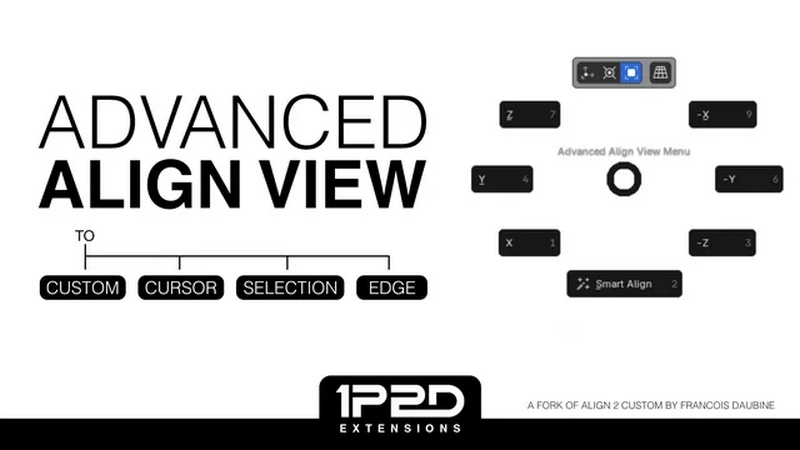
Advanced Align View v0.1.2 for Blender
Advanced Align View helps you align your viewport to a reference point, making precision modeling easier on complex geometry, CAD imports, non-world-aligned objects, and more.
This addon is a fork of Align2Custom. As a regular user of Francois Daubine’s addon, I progressively added more and more features tailored to my workflow, and am now considering it user-friendly enough for a release. This addon is ideal for hard surface, industrial and automotive modelers.
1. No longer get lost in the viewport
Align2Custom does not guard against roll when aligning the view, which can produce confusing camera transitions. Minimize Viewport Roll reduces that by preserving your viewport’s up orientation whenever you align to a canonical viewpoint.
2. Pie Menus
Stay focused on your work, and use Pie Menus to save time. How to use:
Select a mode by clicking on one of the icons at the top position
Select an axis (more on Smart Align below)
3. Smart Align
Just want to align your view but not sure which axis to use? Simply roughly align your view to the desired direction and click on “Smart Align”. It will detect the closest matching angle (depending on the selected method).
4. Align Modes
Custom (legacy) 3D Cursor Selection Adv. Edge Align
What it does Aligns your view to a “Custom Orientation Aligns view to 3D Cursor’s orientation Aligns view to active Object’s orientation. In Edit Mode, aligns to selected geometries Aligns view to a single edge for advance Viewport alignment
Ideal for: Legacy method (don’t recommend) Aligning View to imported CAD model with messy topologies Most case scenarios when tweaking/adding new objects relative to the View Advanced surface modeling requirement precise edge loop alignment (straightening an edge, etc)
5. Advanced Edge Align Mode
In Edit Mode, with one edge selected, align your view to the selected edge so it becomes parallel to the screen border, providing a reference point for precise alignment operations. Unlike Edge Roll (more below), this mode has 3 degrees of freedom.
6. Auto “View” orientation
With these options enabled, entering Align View will:
set your Transform Orientation to “View”, for easy X/Y manipulations
align newly added objects to “View”, so they are perfectly aligned with the custom View you’re currently using.
7. Navigation Operators
Incremental 90/180/left/right/up/down relative rotations to move around the aligned object.
8. Shortcuts
Pie Menus: CTRL + ALT + Q
Toggle Align View: SHIFT + CTRL + ALT + Q
Edge Roll: Double CTRL
In Aligned View, Rotate View: ALT + MMB + drag
In Aligned View, Axis Snap (to recenter Aligned view): Double ALT
In Aligned View, Exit Aligned View but don’t change the angle: ALT+click on Exit
In Aligned View (Selection Mode), Edit Mode and with One Edge Selected: Advanced Edge Align: ALT+click on Axis
Roll (Blender operators): SHIFT + ALT + WHEEL DOWN/UP
9. Settings
The add-on comes with many settings that can be tailored to your needs
DOWNLOAD FROM HOT4SHARE.COM
DOWNLOAD FROM SYNCS.ONLINE