


Leons Modeling Toolkit v2.0 for Blender
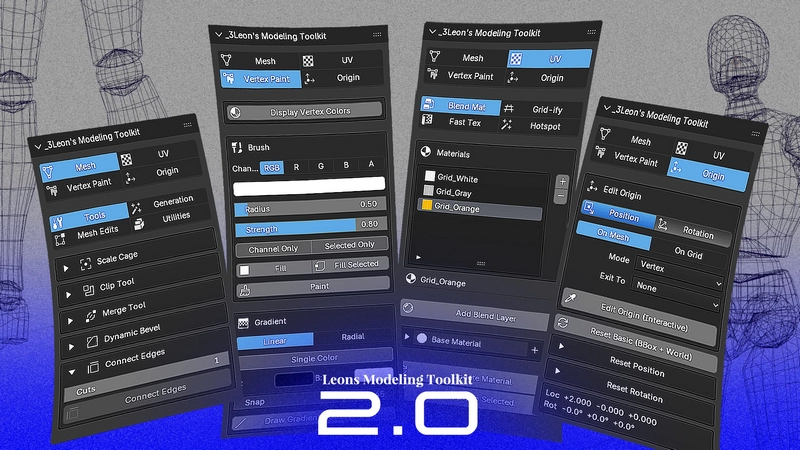
Leons Modeling Toolkit v2.0 for Blender
Leons Modeling Toolkit is a blender addon targeting mostly architectural modeling, level block-outs and faster environment texture iterations, with inspirations drawn from different modeling programs like Maya, 3ds Max and Hammer Editor.
Now featuring a full on Hotspot Editor alongside all classic features, that rivals other addons targeting Hotspot and Trimsheet texturing.
Addon IS compatible [confirmed] with 3.6, 4.5, 5.0, 5.1.
The addon should be compatible with 3.6+, 4.0+ and 5.0+, But its not guaranteed to work for SOME versions
MESH TAB
Scale Cage:
Interactive bounding box handles in the 3D viewport (Edit mode)
Cone handles for single-axis stretch, sphere handle for uniform scale
Grid snap toggle with size presets: 1.0 / 0.5 / 0.25 / 0.2 / 0.1
Absolute vs. relative grid snapping
Vertex snap — snaps cage face to vertices of other objects while dragging
Multi-object support: scales all selected objects in edit mode simultaneously
Clip Tool (also registered as a Viewport Toolbar tool):
Draw a 2-point line to bisect the active mesh
Mode: Keep Front / Keep Back / Split into two separate objects
Fill Cut — auto-fills the open edge loop with an n-gon face
Snap to Grid toggle
Grid Size presets: 1.0 / 0.5 / 0.25 / 0.125 / 0.1 / 0.05 / 0.025 / 0.01 / 0.005 / 0.001 m
Works in both Object mode and Edit mode
TAB cycles clip mode mid-operation
Merge Tool (also registered as a Viewport Toolbar tool):
Click-drag to merge vertices or edges (Maya-style target weld)
Merge Location: First / Center / Last
Ctrl+drag snaps to Center merge automatically
Persistent panel mode: stays active until manually exited
Works in Vertex and Edge selection modes
Dynamic Bevel:
Set Bevel Weight on selected edges
Add Bevel Modifier driven by edge weight
Apply Modifier
Remove Modifier
Clear Weights
Connect Edges (3ds Max-style):
Click two edges that share a face → insert N evenly-spaced cuts across all bridging faces
Cut count control
Slide offset — shift the cuts toward either edge
GPU preview line shows the cut path before confirming
Draw Shape — shared settings for Plane / Cube / Stairs:
Shape selector: Plane / Cube / Stairs
Draw Plane: XY (Floor) / XZ (Front Wall) / YZ (Side Wall)
Height Offset — plane offset along the normal axis
Snap to Grid toggle
Grid Size presets: 1 / 0.5 / 0.25 / 0.125 / 0.1 m
Set Height from Face — eyedropper to read offset from a selected face
Auto Material — pick a Gridify material slot to auto-apply on placement → Plane tab: Click-drag to draw a flat polygon on the chosen axis plane → Cube tab: Click two corners, drag up to set height — builds a solid box → Stairs tab:
Click two corners, drag up for height, then pick direction via interactive axis gizmo
Stair Count (1–128)
Auto Step Height — computes step count from a fixed riser height for consistent stairs
Step Height (0.01–10.0 m)
Direction: ±X or ±Y picked via interactive axis gizmo after placement
Live edit after placement: count, step height, and direction all re-editable in-panel
Panel Maker:
Select a base mesh + cutter mesh → generates a beveled panel cutout
Bevel Width
Bevel Segments (1–16)
Outward Inflation — pushes bevel verts outward for inset look
Apply Modifiers toggle
Always Use Defaults toggle for batch workflows
Cable Generator:
Interactive mode: click to place multiple points, Enter to build
Chain mode: select 2+ objects, generates cables between them in selection order
Count: 1–32 cables per segment
Sag (catenary droop): 0–20 m
Sag Randomness per cable
Scatter Distance — lateral spread across the center line
Twist — max sideways rotation in degrees
Chaos — randomizes twist and scatter together
Seed for reproducible arrangements
Thickness (bevel depth / cable radius)
Thickness Randomness per cable
Bevel Resolution — cross-section roundness (0–16)
Curve Resolution — smoothness along the cable (2–128 points)
Arch Tool (Edit mode):
Converts selected edges into arched curves
Arch Angle: –90° to +90° (90° = semicircle, negative = inverted arch)
Segments: 2–64
Fill — auto-bridges opposite wall-thickness edge pairs to fill the arch opening with quads
Mirror Tool:
Mirror (Pick Axis) — interactive axis gizmo with colored cube handles to pick axis + side at once
Manual axis selector: X / Y / Z
Mirrored Side: + / –
Apply Mirror — applies as a modifier using a hidden mirror plane object
Confirm & Apply Modifier — applies and cleans up the plane object
Show Mirror Plane toggle — displays a wire plane sized to the object bounds
Plane Size control
Mesh Edits:
Bridge Edge Loops (Edit mode)
Triangulate (Keep Quads) (Object mode) — triangulates n-gons and polygons while preserving quads
Utilities:
Create LOD Group — parents selected meshes under an empty with fbx_type = LodGroup for UE-compatible LOD export
Apply Transforms (Keep Pivot) — applies location, rotation, and scale on selected objects while preserving each object’s current world-space origin
UV TAB
Blend Materials (Source 2 / UE5-style heightmap-weighted vertex color blending)
Add / Remove Blend Materials
Per material: add Base Layer / add Blend Layer / Remove Layer
Per layer:
Texture map slots: Base Color, Normal, Emission, ORM, Roughness, AO, Metallic (browse, clear)
Flip Green channel on normal maps (DirectX → OpenGL)
Heightmap (browse, clear) — drives blend weight
Vertex Color Channel: R / G / B
Blend Contrast — controls sharpness of the blend edge (0 = soft, 1 = sharp)
Build Node Group — generates a Blender shader node group from the configured layers
Apply to Selected — applies the built material to selected objects
Grid-ify
Material slot list — links Blend Materials to triplanar projection settings
Tile Size: world-space UV tile in meters (0.01–100 m)
UV Space: World (seams match across objects) / Object (centered on object origin)
Live Update toggle — automatically re-projects triplanar UVs on geometry edits
Update Current — manually re-applies triplanar UVs to objects using the active slot’s material
Update All — re-applies triplanar UVs to every object in the scene with a Gridify material assigned
Fast Tex
Opens UV Editor (splits viewport automatically)
In the UV Editor: 8 interactive drag handles overlaid on the UV island bounding box
4 edge-midpoint handles for single-axis stretch
4 corner handles for two-axis scale
Fit Mode: Scale to Bounds / Absolute U / Absolute V
UV Rotation: 0° / 90° / 180° / 270°
Grid Snap step: 1 tile / ½ / ¼ / ⅛ / 1/16 / 1/32 tile
Absolute Grid Snap (snap to nearest) vs. relative stepping
Gridify toggle — straightens UV islands into a clean rectangular grid after projection (quad-only)
Show Snap Grid toggle
Hotspot (3D Viewport panel — operates on selected mesh in Edit mode)
Atlas picker list
Texel Density control (0.01–100)
Auto Detect Texel Density — estimates density from island/region size ratios
Full Range mode — maps smallest island → smallest region, largest → largest
Inset % — shrinks islands inward from region edges (0–49%)
Hotspot Forgiveness — bias between hotspot vs. trimsheet region preference (0–1)
Hotspot — places selected UV islands into the best-matching atlas region by size
Hotspot All — hotspots every island on the mesh regardless of face selection
Gridify — straightens selected UV islands after hotspotting
Hotspot Selected Regions (visible when shift-selected regions exist) — restricts matching to those regions only
Apply Active Region — snaps all selected islands directly into the active region
Variation toggle + Variation Strength — random 180° flip + trimsheet offset per island to break repetition
Hotspot UV Editor panel (UV Editor sidebar — atlas and region management)
Atlas list with image thumbnail preview
Add / Remove atlas
Import / Export atlas definitions as JSON
Load Regions from Mesh — reads a UV-unwrapped flat mesh’s face UV bounds as atlas regions
Mode toggle: Select / Draw / Scale
Select mode: click to select region, Shift+click for multi-select
Draw mode: LMB drag to draw new regions directly in the UV Editor; Draw Type: Hotspot / Trimsheet; grid snap + snap grid overlay
Scale mode: 8 interactive handles resize selected region(s); grid snap while scaling
Regions list with per-region: Name, Type (Hotspot / Trimsheet), Fit Mode (Fill / Fit U / Fit V), color swatch, selection checkbox
Apply Type to All / Apply Fit to All
Sort Regions — sorts by type then by number
Show/Hide regions overlay toggle
VERTEX PAINT TAB
Vertex Painter
Toggle Vertex Color Display — switches viewport shading to show vertex colors on the active object
Fill Layer — flood-fill a vertex color channel
Paint Brush — brush painting on vertex color channels
Draw Gradient — paint a linear gradient across selected geometry
ORIGIN TAB
Interactive Origin Tool (also registered as a Viewport Toolbar tool for Object and Edit mode)
Affect Position toggle — moves origin location
Affect Rotation toggle — aligns origin rotation to snapped geometry normal
Snap Type: Mesh / Grid
Mesh mode: Vertex / Edge / Face / All
Grid mode: configurable world-space grid step
Exit To — switch to Move tool or Box Select after placing origin
Edit Origin (Interactive) — click to snap origin to vertex, edge midpoint, face center, or grid
Live readout showing current object location and rotation
Reset Basic
One click: origin to bounding box center + rotation zeroed to world
Reset Position
Bounding Box Center
To 3D Cursor
Center of Mass
To World Origin
To Selected Vertices (Edit mode only)
Reset Rotation
To World — zero rotation
To View — aligns to current camera angle